
Now that you have your dedicated Google Business Profile ready and your access permissions verified from Chapter 1, it’s time to unlock the true power of your setup.
Thanks to our direct integration with Google, your CEMI platform empowers you to manage, track, and effortlessly publish answers to your customers’ feedback directly from your central account dashboard. You will no longer need to jump back and forth between multiple platforms to look up and manage your dealership's online reputation.
Establishing this link takes less than two minutes. Watch the quick tutorial video below or follow our simple step-by-step written guide to successfully connect your Google Business Profile to your CEMI account:
Step 1: Navigate to Settings
Log in to your Customer Alliance account and go to your GOOGLE sub-account.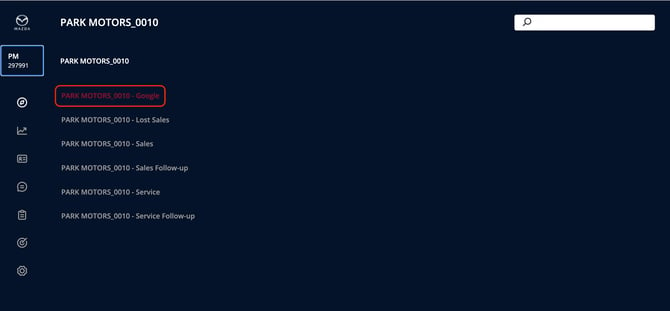
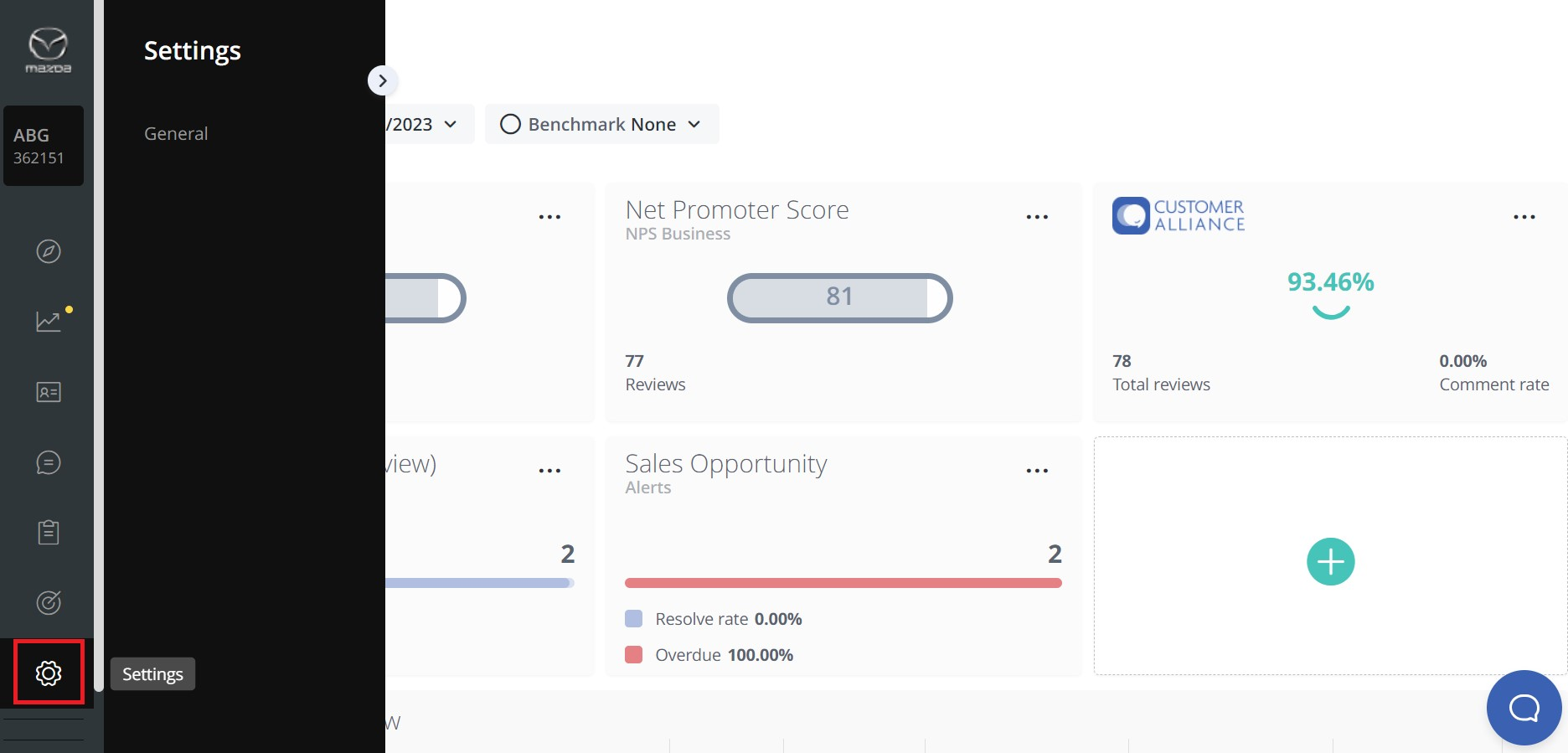
Step 2: General Settings
Within the Settings menu, locate and click on "General."
Step 3: Portal Accounts
In the General settings, find and select "Portal Accounts."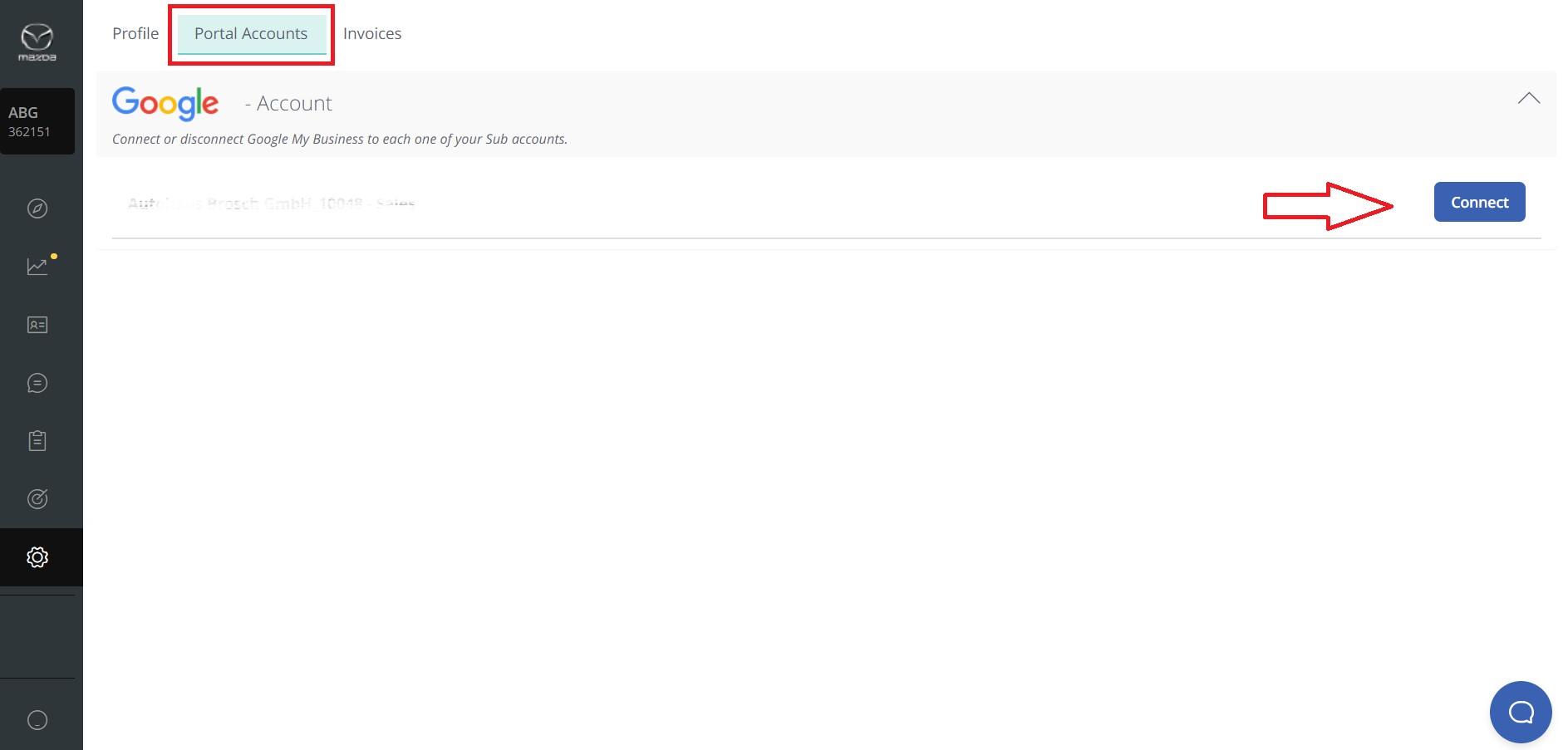
Step 4: Google My Business Connection
- Look for the option to connect with Google My Business.
- Follow the on-screen instructions to link your Customer Alliance account to your Google My Business profile.
Congratulations! You have successfully set up a connection to your Google My Business account.
This integration enhances your user experience, providing a direct and efficient channel for managing and responding to customer feedback.
For any additional assistance or inquiries, please reach out to our dedicated Support Team.