
Overview
A guest survey goes from idea to inboxes in six steps: build it under Surveys, publish it, then send it automatically from Distribution. Both pages are in the left-hand menu.
- Create a survey, from a template or from scratch.
- Add questions: ratings, NPS, choices and free text.
- Add logic so a question only appears when an earlier answer calls for it.
- Adjust settings: language, branding, where guests go after they finish, reminders and the invitation email.
- Publish the survey so guests can open it.
- Automate it in Distribution, so each guest is invited a set number of days after their stay.
Publishing alone sends nothing. Invitations go out only from the Distribution page, either as a one-off send or as an automation.
If you don't see Surveys in your menu, surveys may not be part of your plan. Contact your Customer Alliance account manager.
Creating a new survey
Click Create Survey on the Surveys page, pick a template or a blank survey, and the editor opens on your new draft. To create, edit or publish surveys you need the Configure surveys permission. The Admin and Manager roles have it by default.
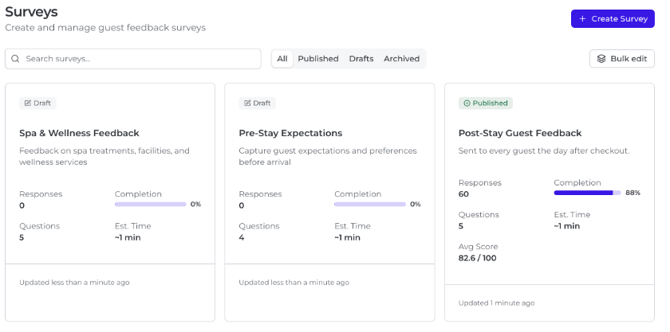
- Go to Surveys in the left-hand menu and click Create Survey (top right).
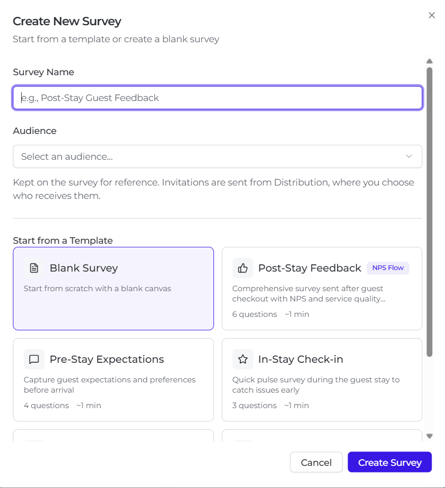
- Enter a Survey Name, for example "Post-Stay Guest Feedback". You can leave it empty: the survey then takes the template's name, or "Untitled Survey".
- Optionally pick an Audience. This is kept on the survey for reference only. You choose who actually receives invitations later, in Distribution.
- Under Start from a Template, choose Blank Survey or one of the templates below.
- Click Create Survey. The editor opens and your survey is saved as a Draft.
|
Template |
What it's for |
Questions |
|---|---|---|
|
Post-Stay Feedback |
Sent after checkout: NPS and service quality. Includes a follow-up for low NPS scores and a rule sending promoters to Google |
6 |
|
Pre-Stay Expectations |
Guest expectations and preferences before arrival. Also adds pre-arrival wording to the invitation email |
4 |
|
In-Stay Check-in |
A quick pulse during the stay to catch issues early |
3 |
|
Spa & Wellness |
Spa treatments, facilities and wellness services |
5 |
|
Loyalty Program |
Satisfaction and engagement with your loyalty program |
4 |
Every template is a starting point: you can change, add or remove any question.
Saving and publishing
The editor does not save automatically. Click Save in the top right; the status next to it reads Unsaved changes, Saving... or Saved with the time. Your browser warns you if you try to leave with unsaved changes.
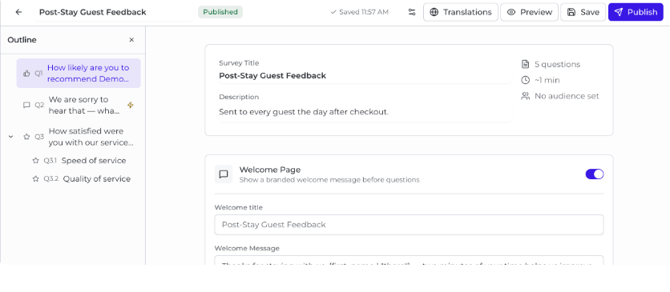
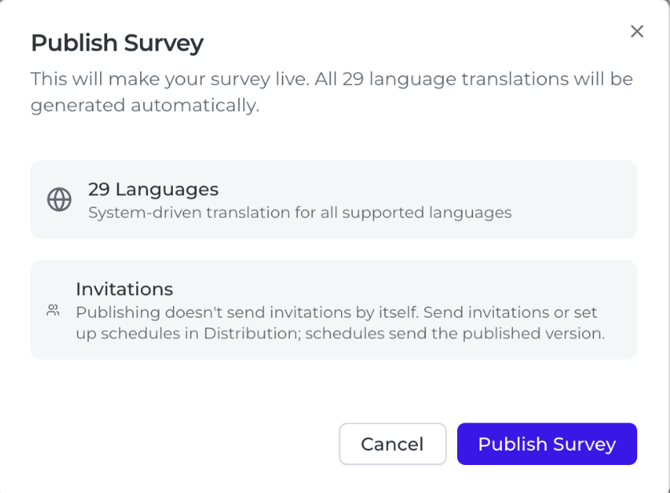
When the survey is ready, click Publish, then Publish Survey in the dialog. Publishing saves any pending changes, makes the survey live and creates its share link.
The badge next to the survey title shows where it stands:
- Draft: never published. Guests can't open it.
- Published: live. Guests see exactly this version.
- Unpublished changes: you saved edits to a live survey. Guests still see the previous version until you click Publish again.
- Archived: taken out of use. Its share link stops working.
Re-publishing never changes the share link, so links you have already sent keep working.
Previewing
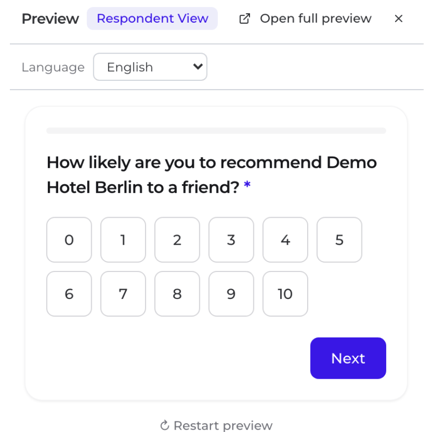
Click Preview to open a guest's-eye view beside the editor. It follows your logic as you answer, has a Language picker, and shows the overall score at the end. Open full preview shows the full guest page in a new tab, including your unsaved changes. Answers given in a preview are never saved.
Adding questions
Click Add Question below your last question and pick a type. The new question is added at the end of the survey and selected, ready for you to type.
- Click Add Question.
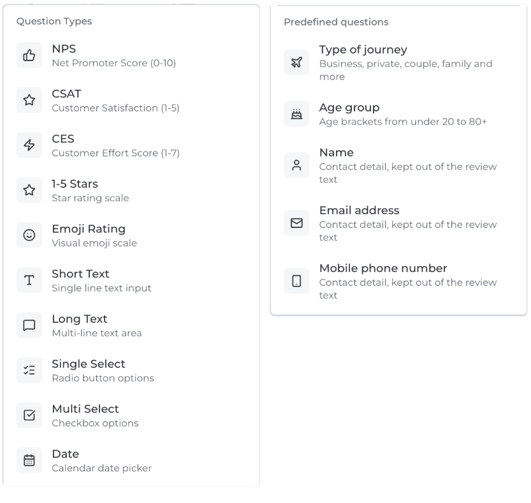
- Choose from Question Types or Predefined questions (both described below).
- Type your question in Enter your question.... To add help text for guests, click + Add description.
- For Single Select and Multi Select, replace "Option 1" and "Option 2" with your own answers, and click Add Option for more.
- Adjust the question's settings (see the table further down), then click Save.
Question types
|
Type |
What the guest sees |
Scale |
|---|---|---|
|
NPS |
"How likely are you to recommend…" scale |
0 to 10 |
|
CSAT |
Customer satisfaction rating |
1 to 5 |
|
CES |
Customer effort rating |
1 to 7 |
|
1-5 Stars |
Star rating |
1 to 5 |
|
Emoji Rating |
Five faces, from very unhappy to delighted |
5 points |
|
Short Text |
A one-line text box (up to 500 characters) |
– |
|
Long Text |
A multi-line text box (up to 5,000 characters) |
– |
|
Single Select |
Radio buttons: one answer |
– |
|
Multi Select |
Checkboxes: several answers |
– |
|
Date |
A calendar date picker |
– |
The five rating types (NPS, CSAT, CES, 1-5 Stars, Emoji Rating) feed the survey's overall score from 0 to 100. Each answer is scaled to 100 (an NPS of 7 counts as 70, a CSAT of 4 as 80), and the overall score is the average of the rating questions.
Predefined questions
These are ready-made questions, already written in your survey's language.
|
Predefined question |
Asks |
Good to know |
|---|---|---|
|
Type of journey |
"What type of trip was this?" |
Business, Private, Alone, Couple, Family, Friends, Group |
|
Age group |
"How old are you?" |
Brackets from under 20 to 80+ |
|
Name |
"What is your name?" |
Kept out of the review text |
|
Email address |
"What is your email address?" |
Kept out of the review text |
|
Mobile phone number |
"What is your mobile phone number?" |
Kept out of the review text |
Contact answers (name, email, phone) are visible to your team on the response but never become part of the review itself.
Question settings
|
Setting |
What it does |
Available on |
|---|---|---|
|
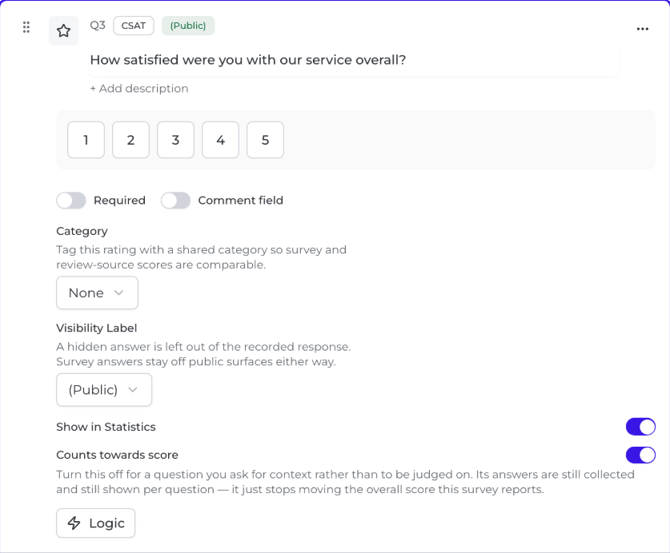
Required |
The guest must answer before moving on. Unavailable on sub-questions and on questions with a condition |
All types |
|
Comment field |
Adds an optional comment box under the rating (up to 2,000 characters) |
Rating types |
|
Category |
Tags the rating with a topic such as Room, Cleanliness or Breakfast, so survey scores line up with review-site scores. Pick New category… to add your own |
CSAT, 1-5 Stars, Emoji Rating |
|
Visibility Label |
(Public): the answer can be quoted where your verified reviews appear publicly, such as your review widget. (Internal), the default: your team sees it, guests and the public never do. Hidden: left out of the review text altogether |
All types |
|
Show in Statistics |
Includes the question in survey statistics and reports |
All types |
|
Counts towards score |
Turn off for a question you ask for context, not to be judged on. Answers are still collected and shown, but don't move the overall score |
Rating types |
Organising questions
- Reorder: hover over a question and drag the grip handle on its left. A question moves among questions at the same level.
- Duplicate, Add Sub-Question, Delete: open the ⋯ menu on the question. A duplicate appears right below the original, without its sub-questions. Delete has no confirmation step and also removes the question's sub-questions, so check before you click.
- Outline: the panel on the left lists every question. Click one to jump to it; a ⚡ marks questions with logic.
Sub-questions
Use Add Sub-Question to nest a follow-up under a question, for example a set of ratings under "Your room". Sub-questions can go two levels deep. On their own they always appear after their parent; add a condition (next section) to show them only for certain answers. A question with rated sub-questions scores as the average of those sub-questions.
Personalising text
Type { in a question, the welcome message or the thank-you message to insert a guest's details. Each variable has a fallback for when the detail is missing.
|
Variable |
Inserts |
If missing |
|---|---|---|
|
First name |
The guest's first name |
"there" |
|
Last name |
The guest's last name |
"Guest" |
|
Full name |
The guest's full name |
"Guest" |
|
Check-in date, Check-out date |
The stay's dates |
– |
|
Nights |
Length of the stay |
– |
In the editor an inserted variable shows its fallback, for example Hi {first_name | "there"}, how was your stay?. A guest named Anna reads "Hi Anna, how was your stay?"; a guest without a first name on file reads "Hi there, how was your stay?". Variables work in top-level questions, not in sub-questions.
Surveys with more than 12 questions show a reminder that long surveys lower completion rates. As a guide, allow about 6 seconds per question.
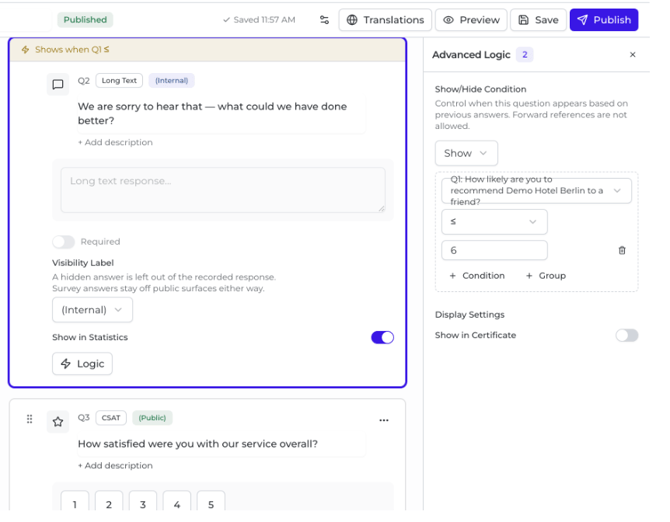
Question logicLogic shows or hides a question depending on how the guest answered an earlier one. For example, ask "What could we have done better?" only when the NPS answer is 6 or lower. Guests never see the questions their answers skip.
- On the question you want to show or hide, click Logic (⚡). The Advanced Logic panel opens on the right.
- Under Show/Hide Condition, choose Show (the question appears only when the condition is met) or Hide (it disappears when the condition is met).
- Click Add condition. Pick the earlier question to check, an operator and a value.
- To combine conditions, add more and choose Match ALL (every condition must be true) or Match ANY (one is enough). For more complex rules, use + Group to nest a set of conditions, up to three levels deep.
- Click Save, then open Preview and answer as a guest to check the question appears when it should.
A question with logic shows a strip at the top of its card, such as "Shows when Q1 ≤", and a ⚡ next to it in the Outline.
Which operators you can use
|
When the earlier question is… |
You can check whether it… |
|---|---|
|
NPS, CSAT, CES, 1-5 Stars, Emoji Rating |
is, is not, ≤, ≥ a number, is answered, is not answered |
|
Single Select |
is, is not a chosen option, is answered, is not answered |
|
Multi Select |
includes, does not include, is exactly a chosen option |
|
Short Text |
contains, does not contain, equals, is empty, is not empty, matches pattern |
|
Long Text |
contains, does not contain, equals, is empty, is not empty |
Text checks ignore upper and lower case. Matches pattern is for advanced users and takes a regular expression. Date questions can't be used in a condition.
Rules to know
- Conditions only look back. A question can depend only on questions above it. If you drag a question so that its condition would point to a later question, the condition is removed and a message names the affected question.
- Deleting a question removes conditions that used it. The questions that depended on it then always appear, so review their logic.
- Conditional questions can't be required. Neither can sub-questions. A question a guest never sees never stops them from finishing.
- Sub-questions follow their parent. If a parent question is hidden, its sub-questions are hidden too. To show a sub-question only for certain answers to its parent, give the sub-question its own condition and pick the parent as the source.
- Finish every condition. A condition without a value shows "Set a value to complete this condition". Until you set one, a Show question stays hidden.
Logic decides which questions a guest sees. To decide where a guest goes after the last question, for example to Google for a high overall score, use the Forwarding settings described in the next section.
Survey settingsMost settings are under the sliders icon (Survey Settings) at the top of the editor; the welcome and thank-you pages are edited directly on the survey. Click Save after a change. Like question edits, setting changes reach guests only when you Publish again. Two exceptions take effect as soon as you save: Language and Invitation Email.
|
Tab |
What you set |
|---|---|
|
Forwarding |
Where guests go after the last question, such as a Google review button for happy guests |
|
Branding |
Logo, cover image, colours, font and custom CSS |
|
Reminders |
Follow-up emails to guests who haven't finished the survey |
|
Invitation Email |
This survey's own invitation and reminder emails |
|
NPS Flow |
A separate closing message for guests who give a low NPS score |
|
Responses |
Whether the guest's name shows on the resulting review |
|
Language |
The language you write the survey in |
|
Export |
Download the survey as a JSON file |
Welcome and thank-you pages
Both are edited on the survey itself, above and below the questions.
- Welcome Page: switch it on to greet guests before the first question, with a Welcome title and a Welcome Message. Templates start with it on; blank surveys start with it off.
- Thank You Page: the message shown when the guest finishes. The Review Button Label sets the text of the review button, such as "Leave a review", shown to guests who match a forwarding rule.
Forwarding
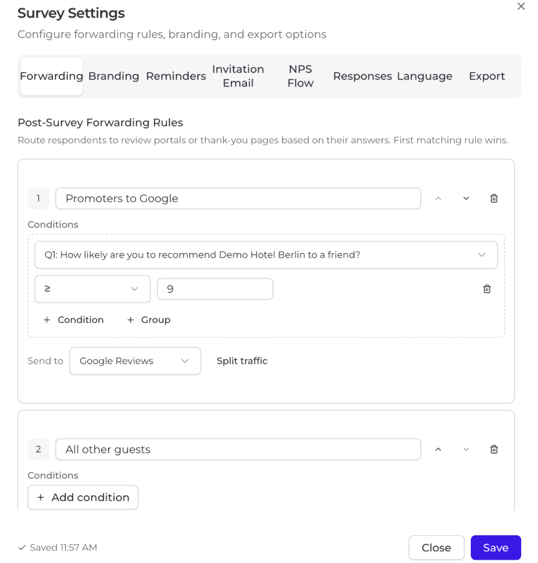
Forwarding rules decide what a guest sees after the last question: a button to review you on a portal, or your thank-you page. Rules are checked from the top, and the first one that matches wins. Guests are never redirected automatically; they choose whether to click the button.
- Open Survey Settings → Forwarding and click Add Forwarding Rule.
- Give the rule a name, for example "Promoters to Google".
- Under Conditions, click Add condition. You can check the Overall score (0–100), the Respondent language, or the answer to any question. A rule without conditions matches every guest.
- Under Send to, pick Google Reviews, TripAdvisor, HolidayCheck, Internal Thank You or Custom URL. To share guests between portals, click Split traffic and set a Weight for each portal.
- Use the arrows to put rules in order, and set the Default Destination (No Rule Matched) for guests no rule catches.
- Check your rules in Test Forwarding Rules: enter an overall score and a language, click Test, and see which rule fires.
The portal buttons use the review links saved for your property under Settings → Review links. If a link is missing, the rule shows a warning and guests see the thank-you page instead; click Add review links to fix it.
Treat unhappy guests fairly. EU consumer law (the UCPD, as amended by Directive 2019/2161) restricts steering only satisfied guests to public review sites. If your rules send high scores to a portal while everyone else stays on the internal page, the publish dialog shows a Compliance Warning. A simple remedy is a last rule with no conditions that sends all remaining guests to a public portal too. Ask your legal advisor if you are unsure.
Branding
Upload a Logo and a Cover Image (PNG, JPG, SVG or WebP, up to 2 MB each); the cover appears at the top of the survey. Enter your Primary Color and Secondary Color as hex codes, such as #3917e5, and choose a Font Family (Montserrat by default). Custom CSS is for advanced styling and is available on the Pro plan.
Reminders
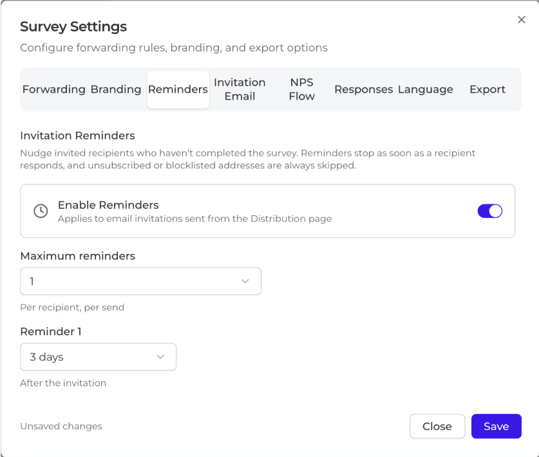
Reminders re-send the invitation by email to guests who haven't completed the survey. They stop as soon as the guest responds, and unsubscribed or blocklisted addresses are always skipped.
- Switch on Enable Reminders.
- Choose Maximum reminders: 1, 2 or 3 per guest.
- For each reminder, choose the delay: 1 to 14 days after the invitation (for the first) or after the previous reminder.
- Save and publish the survey.
Only email invitations are reminded, and only those sent in the last 30 days.
Invitation Email
By default every survey uses your account's invitation email from Settings. Here you can write one just for this survey.
- Choose Invitation or Reminder, then a Language. Languages you have customised are marked with ●.
- Edit the Subject, the Body (HTML), the Button label, the Sender name and an optional Reply-to email.
- Insert merge tags with the buttons above the body:
,,,. They are filled in for each guest when the email is sent. - Click Send test to see it in your inbox (it goes to you unless you enter another address), then Save.
This tab saves on its own, so changes apply to the next invitation without re-publishing. Reset to default removes the survey's version and returns to the account email.
NPS Flow
Switch on Enable Detractor Flow and choose a Detractor Threshold, from 0-4 to 0-7 (0-6 by default). Guests whose first NPS answer is at or below the threshold then see an apology message on the completion page ("We're sorry we fell short") instead of your thank-you message. Your forwarding rules still apply to them.
To ask these guests a follow-up question, such as "What could we have done better?", add the question yourself and give it a Show condition on the NPS question (see Question logic).
Responses
Switch on Hide the guest's name on the review to show "Anonymous" instead of the guest's name. Your team can still see who answered on the guest record. The change applies to future responses only.
Language and translations
Under Language, choose the Language you write in. Guests who use one of the other 28 supported languages read the survey translated from it automatically.
To check or correct a translation, click Translations at the top of the editor and pick a language. Edit any text and click Save; your version is marked Overridden and is kept from then on. Reset to auto goes back to the automatic translation. If you later change the original text, the override is marked Source changed so you know to review it. Personalisation variables in {braces} are never translated.
Changing the language you write in redoes the automatic translations but keeps your own corrections. On a published survey, guests see the change as soon as you save.
Adding a survey to a distribution automationAn automation invites every guest in an audience a set number of days before or after a stay date from your PMS, for example one day after checkout. Once added, it runs on its own; you don't need to send anything by hand.
Before you start, check that:
- the survey is published. Only published surveys appear in Distribution.
- you have at least one audience (see below). Every automation needs one.
- your PMS is connected, or guests are imported, so stay dates are available.
Set up the automation
- Go to Distribution and stay on the Email invitations tab.
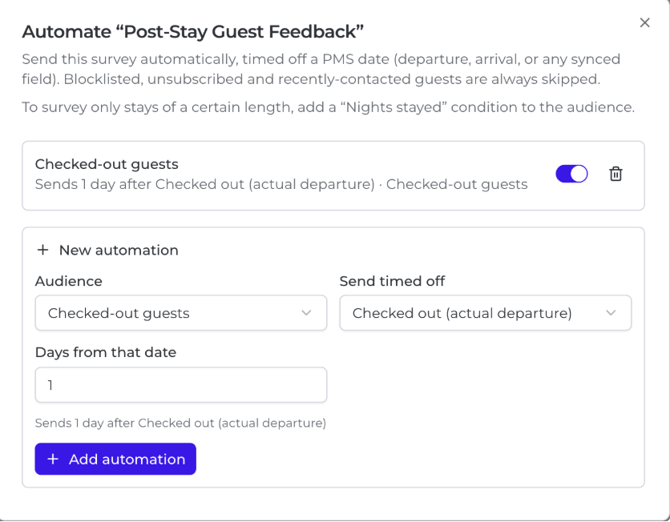
- Find your survey in the table and click Automate.
- Under New automation, choose the Audience to invite.
- Under Send timed off, choose the date to count from (see the table below).
- Under Days from that date, enter how many days after that date to send. Use 0 to send on the day itself, or a negative number to send before it: -2 sends two days before. The sentence underneath confirms your choice, for example "Sends 1 day after Checked out (actual departure)".
- Click Add automation. It is switched on straight away.
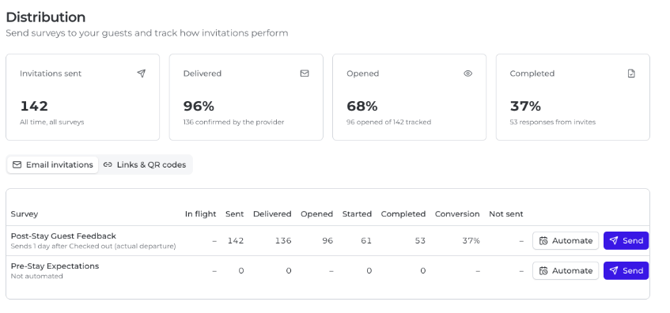
Back in the table, the line under the survey's name now describes the automation.
A survey can have several automations, for example one per audience.
|
Send timed off |
Counts from |
Typical use |
|---|---|---|
|
Checked out (actual departure) |
The checkout recorded by your PMS, or the planned departure if none is recorded |
Post-stay feedback (the default) |
|
Departure (scheduled) |
The planned departure date |
Post-stay feedback when checkouts aren't recorded |
|
Checked in (actual arrival) |
The check-in recorded by your PMS |
In-stay check-in surveys |
|
Arrival (scheduled) |
The planned arrival date |
Pre-stay surveys, with a negative number of days |
|
Stay custom field… / Guest custom field… |
A date field your PMS sends; enter its Field key |
Special cases, such as an event date |
When an automation sends before arrival, the survey's invitation email gets pre-stay wording in every language you haven't customised. Check any wording you did customise so it doesn't thank guests for a stay that hasn't happened yet.
What happens next
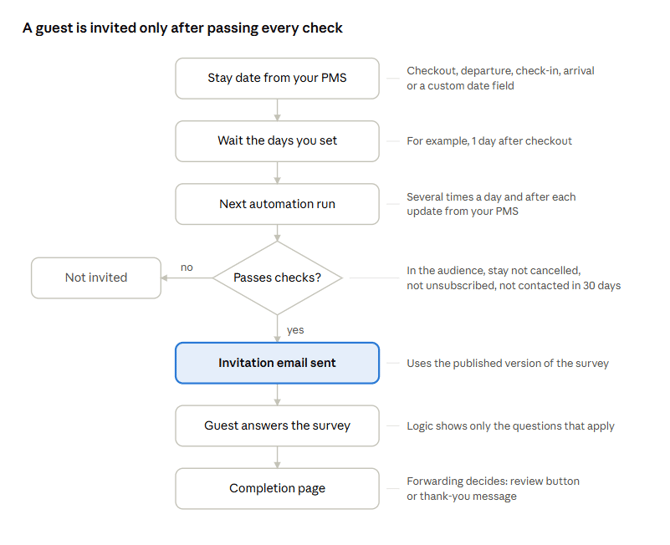
Each run repeats these steps for every guest in the audience whose send date has arrived.
- Timing. Automations run several times a day and after each update from your PMS. A guest is invited at the first run after their send date; you can't choose the time of day.
- Catching up. A new or re-enabled automation also invites guests whose send date fell in the last 30 days. It never goes further back.
- One invitation per stay. A guest is invited once per stay per survey. A returning guest is invited again for their next stay.
- Guests who are skipped. Cancelled and no-show stays, and guests who are blocklisted, unsubscribed or withdrew consent, are never invited. Nor are guests contacted in the last 30 days, whether invited to this survey or sent a review request. Automations can't override this 30-day rule.
- The published version is sent. Edits reach guests only after you publish them. If you archive the survey, the automation stops sending.
Manage automations
Click Automate on the survey again to see its automations. Use the switch to pause or resume one, and the bin icon to delete it. An automation can't be edited: to change one, add the new version, then delete the old one. An automation marked Inherited was set up at a higher level of your organisation, such as a group or brand, and can only be changed there.
If the page shows Invitations are on hold for this account, nothing is sent until the reason given in the notice is resolved, usually your PMS delivering its first reservations. Guests who check out before then are not invited.
Audiences
An audience is a saved group of guests. Create them under Settings → Audiences with New audience: give it a Name, add Conditions, and choose Match all or Match any. An audience with no conditions covers every guest at that property.
Useful conditions include Nights stayed (for example, only stays of at least 2 nights), Booking channel, Language code, Country code, Stay status and Email address. In an automation, stay conditions are checked against the stay that triggered the invitation. An audience created for a group is available to every property in it.
Sending by WhatsApp
If WhatsApp is switched on for your account, the automation shows a Send by option: Email, WhatsApp, else email, or WhatsApp only. With WhatsApp, else email, guests WhatsApp can't reach get an email, and you can also email guests who haven't read the message within 24, 48 or 72 hours. WhatsApp only needs a simple survey: no logic, at most 10 questions and at most 20 options per question. WhatsApp invitations aren't followed by reminders.
Tips and FAQ
Can I send a survey once instead of automating it?
Yes. In Distribution, click Send next to the survey, tick one or more Audiences or paste Email addresses, and click Send invitations. A one-off send goes to everyone in the audience, however long ago they stayed, so check the audience first. Guests contacted in the last 30 days are skipped unless you tick Ignore the 30-day cooldown.
How do I share a link or a QR code?
Open Distribution → Links & QR codes and click Copy link or QR code next to the survey. You can also use Copy Share Link in the survey's ⋯ menu on the Surveys page. The link stays the same when you re-publish.
Where do I see the results?
On the Surveys page, open the survey's ⋯ menu and choose View Analytics. Each survey card also shows its responses, completion rate and average score.
Can I delete a survey?
No. Choose Archive from the survey's ⋯ menu instead: it disappears from the main list, its link stops working, and its responses are kept. Restore brings it back on the Archived tab.
How do I use one survey across several properties?
At group level, click Bulk edit, select the surveys, then Apply to sub-accounts. Choose the Target Properties and click Deploy to selected properties. Each property receives its own draft copy, which it can translate or adjust and must publish itself. Properties that changed their copy are skipped unless you tick Overwrite properties that customized their copy.
Why can't I change a survey?
If you see "This survey is managed by a parent node", it belongs to a higher level of your organisation. Use Clone Survey to make your own copy. If you get "You don't have permission to do that", ask an Admin for the Configure surveys permission.
Why is Required greyed out?
Sub-questions and questions with logic can't be required, because some guests never see them.
A condition disappeared after I moved a question. Why?
A question can only depend on questions above it. Moving it above its source question removes the condition; add it again if you still need it.
Tips for better response rates
- Keep it short: fewer questions means more guests finish. The editor warns you above 12 questions.
- Put your most important rating first; the NPS Flow uses the first NPS question.
- Send within a day or two of checkout, while the stay is fresh.
- Personalise the invitation with
and the first question with the guest's first name. - Preview in a second language before publishing to check the translation reads well.