How it works
A guest answers your survey without leaving WhatsApp: no link, no browser, no login.
- The guest becomes due for one of your automations, for example one day after their departure in your PMS.
- They receive an invitation from your hotel's WhatsApp number, in their own language: "Thank you for staying at your property. Would you answer a few quick questions about your stay?", with a Start the survey button.
- The button opens your survey as a form inside the chat.
- When they submit it, they get your thank-you message.
- If you turn on Ask for more, they're invited to add something in their own words. Everything they send within the hour, text or voice notes, joins their answers.
- Their response arrives in Customer Alliance like any other review, and raises alerts as usual.
Guests can reply STOP at any time, and your hotel won't message them on WhatsApp again.
Before you start
Have these four things ready. Connecting takes a few minutes.
- WhatsApp surveys on your account. You'll find the WhatsApp card on the Integrations page, under Other. If it isn't there, ask your Customer Alliance contact.
- A number in the WhatsApp Business app, on a phone you have with you: you'll scan a QR code with it. The number stays in your app, so you can keep chatting with guests there as before.
- A Meta login for your business. Meta may ask you to verify your business.
- A payment method in your Meta account. Meta charges your Meta account for each invitation.
You also need permission to manage integrations at the location you connect.
Connect your WhatsApp number
You connect once per number, from the integrations page. Customer Alliance then asks Meta to approve your invitation messages for you.
- In the header, pick the location the number is for: a property, or a group or HQ (see the next section).
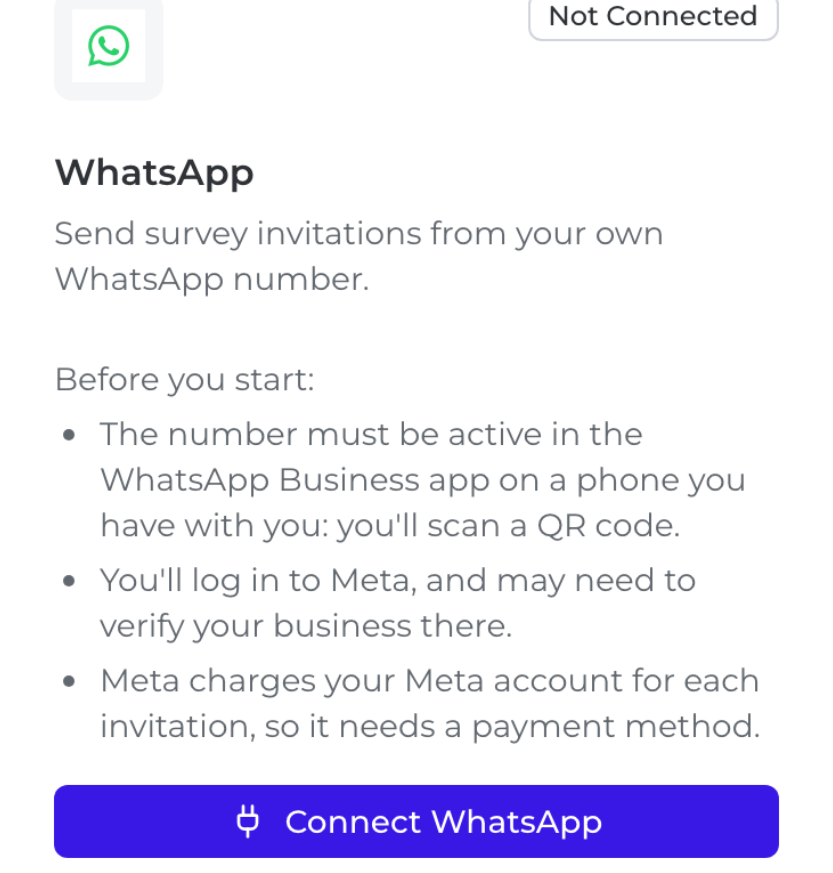
- Open Integrations, then the Other tab, and click Connect WhatsApp on the WhatsApp card.
- A secure setup page opens. Log in with Meta, choose your WhatsApp Business account and number, and scan the QR code with the WhatsApp Business app on your phone. The page stays open for 60 minutes.
- You come back to Customer Alliance with "WhatsApp connected: your number", and the card shows Connected.
- Your invitation messages go to Meta for review, in English, German, French, Italian, Spanish, Dutch and Portuguese. Meta usually decides within 24 hours.
Until a language is approved, guests who speak it get the English invitation once that is approved. A guest with no approved invitation in their language or in English waits until one is.
One number for several properties
Connect a number at a group or at HQ, and every property below it that has no number of its own sends from it.
- Each guest is invited from the nearest number above their property: the property's own first, then its group's, then HQ's.
- A location holds one number, and a number can be connected at only one location.
- To give one property its own number, connect it at that property. Its guests switch to it; the rest of the group keeps the shared one.
For now, a property that sends from its group's number still shows Not Connected on its own card. Its invitations go from the group's number all the same.
Manage your number
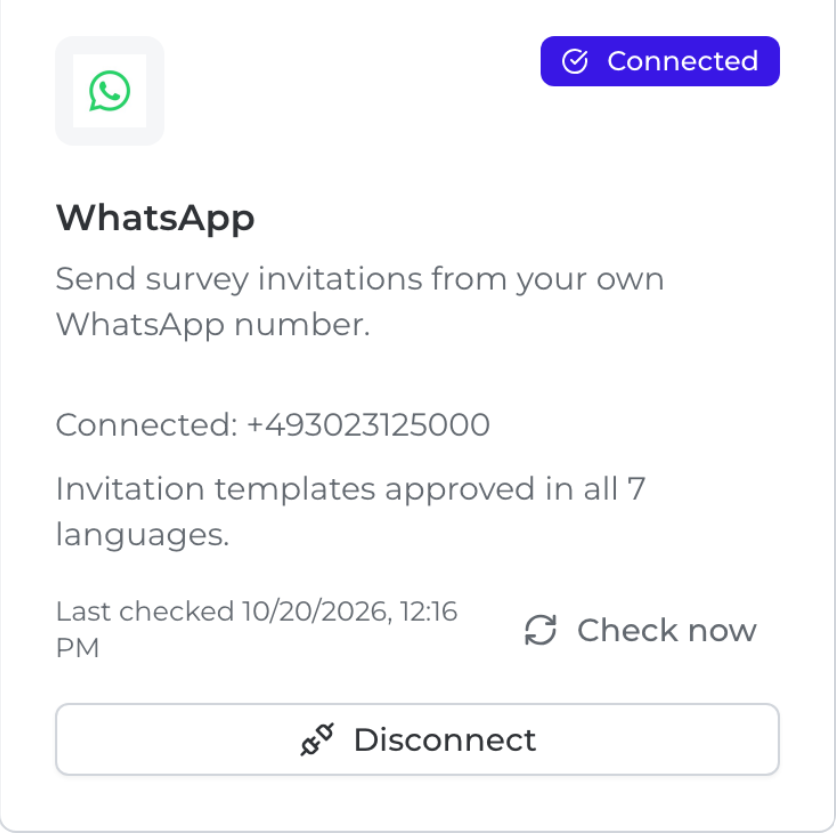
The WhatsApp card shows your number, whether it is working, and how Meta's review of your invitations stands.
|
Badge |
What it means |
What to do |
|---|---|---|
|
Connected |
The number works and invitations go out. |
Nothing. |
|
Name in review |
Meta is reviewing the number's display name. Invitations are sent meanwhile. |
Nothing. |
|
Needs attention |
Something stops the number. The line below the number says what. |
Follow that line; see Troubleshooting. |
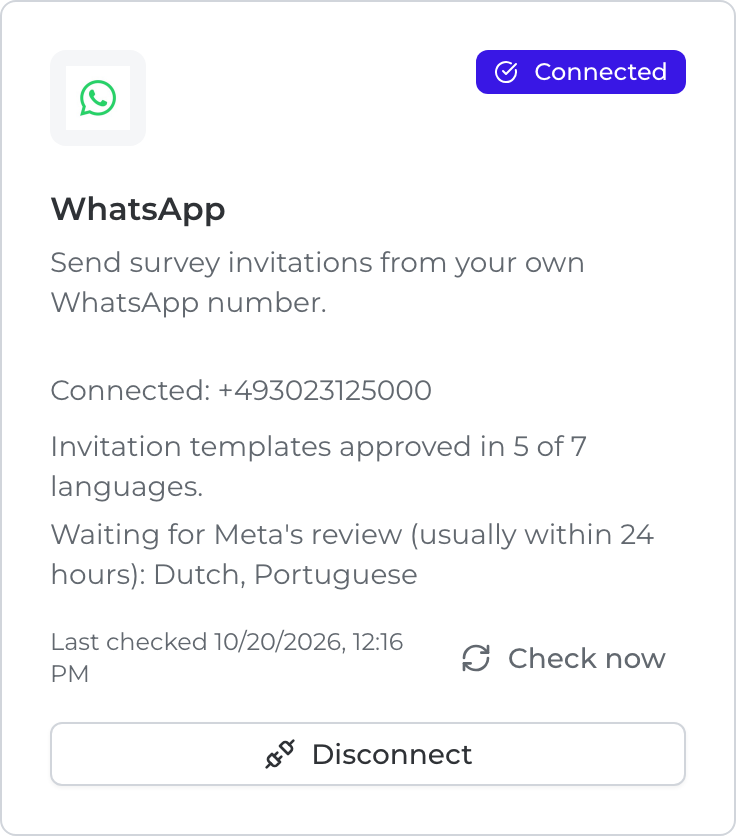
- Invitation templates: for example "Invitation templates approved in 5 of 7 languages". Languages still waiting, or rejected by Meta, are listed by name.
- Last checked: Customer Alliance checks your number regularly, and straight away when WhatsApp reports a problem. Click Check now for a fresh check, once a minute at most.
- Disconnect: stops all invitations from the number. Customer Alliance asks you to confirm first. Connect again at any time.
Create a WhatsApp survey
A WhatsApp survey is a short form, up to 10 questions, that starts with a rating and has no branching.
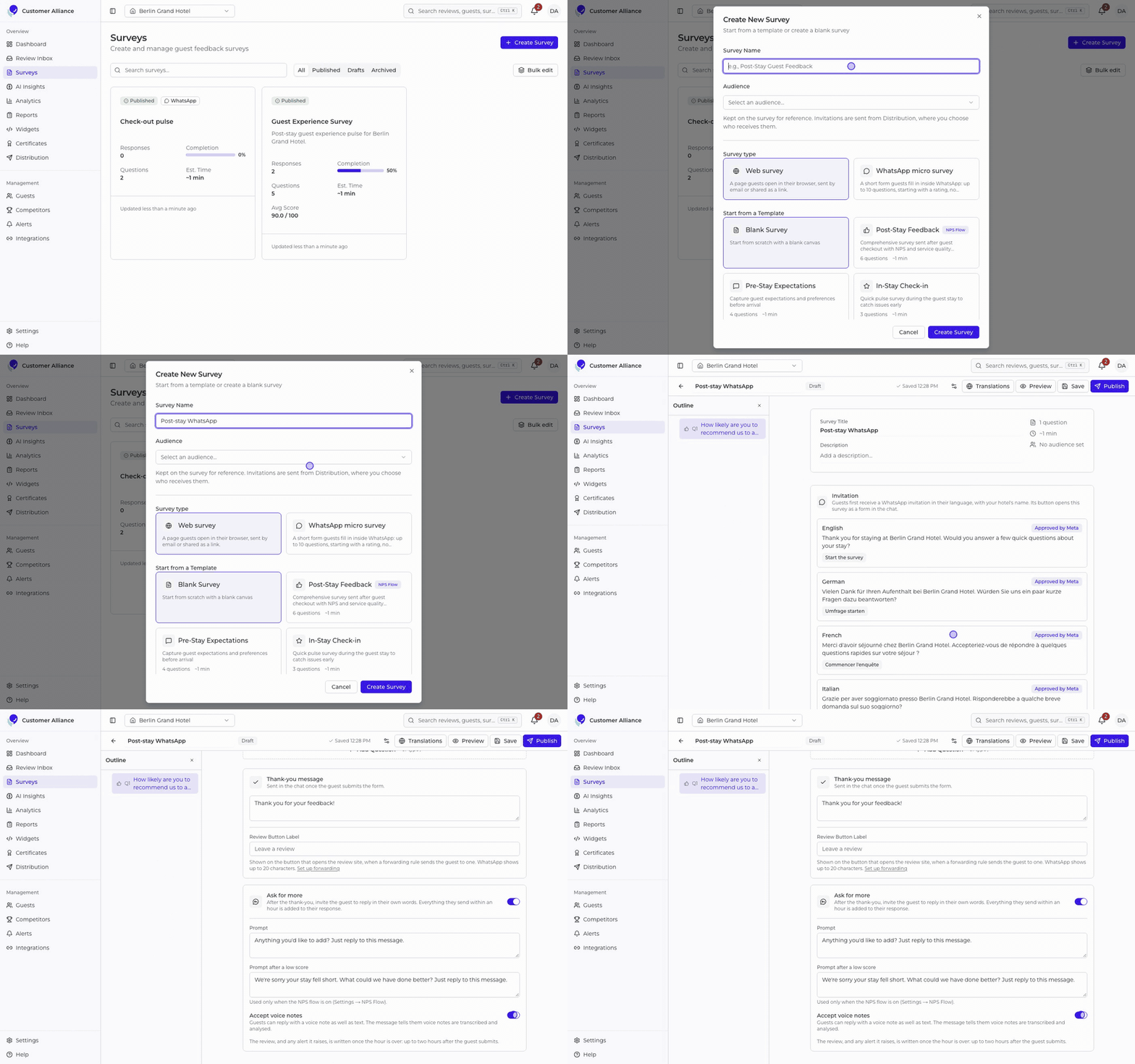
- Go to Surveys, click Create Survey and choose WhatsApp micro survey.
- Add your questions. The first must be an NPS, CSAT or star rating question, and it counts towards the score. After it you can use NPS, CSAT, star rating, single choice and short text questions: up to 10 in all, sub-questions included, with up to 20 options each.
- Optionally set a Form title, shown at the top of the form. Left empty, the survey's name is used.
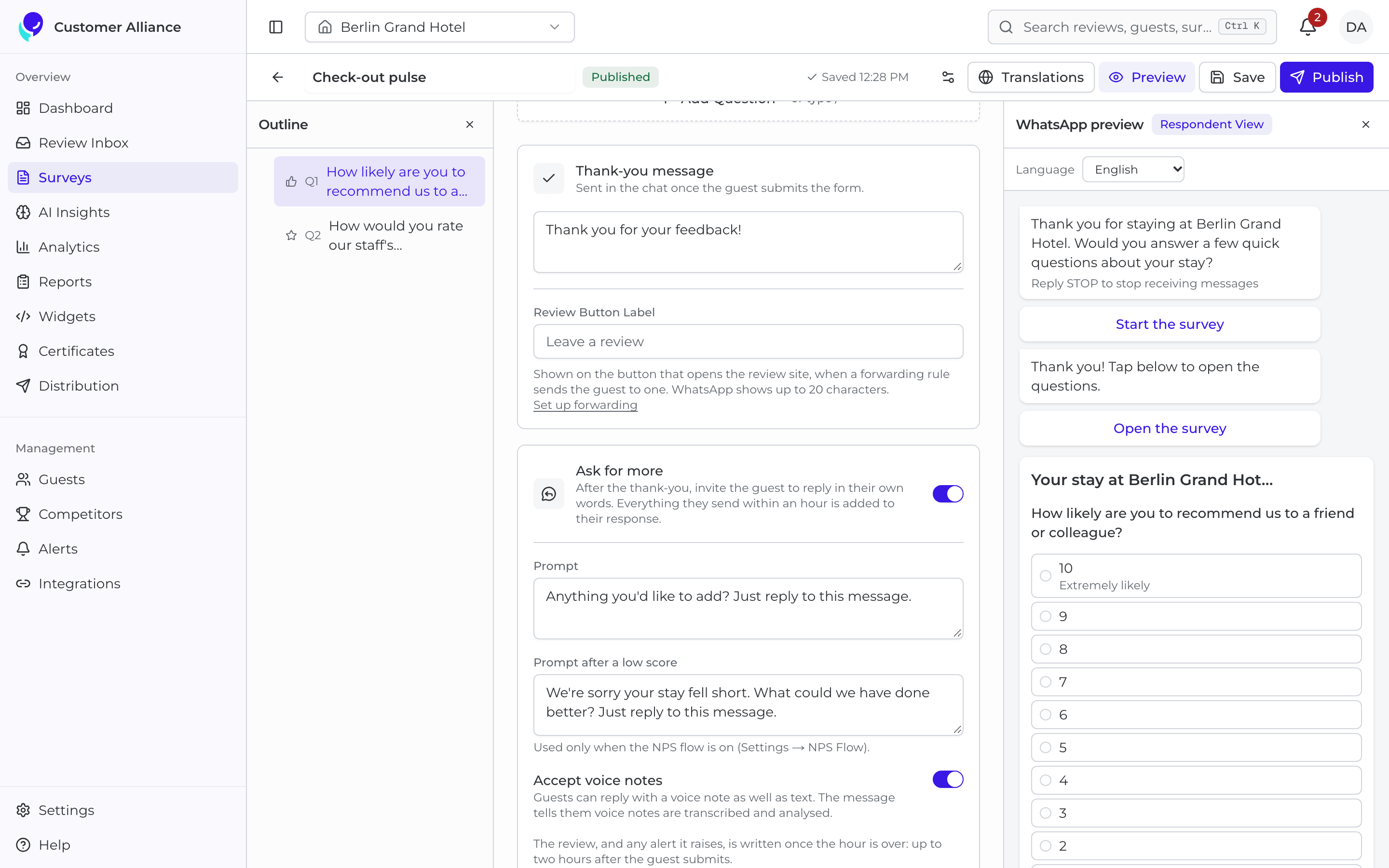
- Write your Thank-you message, sent in the chat once the guest submits.
- Optionally turn on Ask for more to invite a reply in the guest's own words, with its Prompt. Turn on Accept voice notes to take voice notes as well as text.
- Click Preview to see the chat as your guest will: your hotel's invitation, the form, your thank-you message and the follow-up. Then click Publish.
With the NPS flow on (Settings → NPS Flow), a guest whose NPS is at or below your threshold gets an apology instead of the thank-you, and your Prompt after a low score.
Send it
WhatsApp invitations go out through automations, timed off your guests' stays in your PMS.
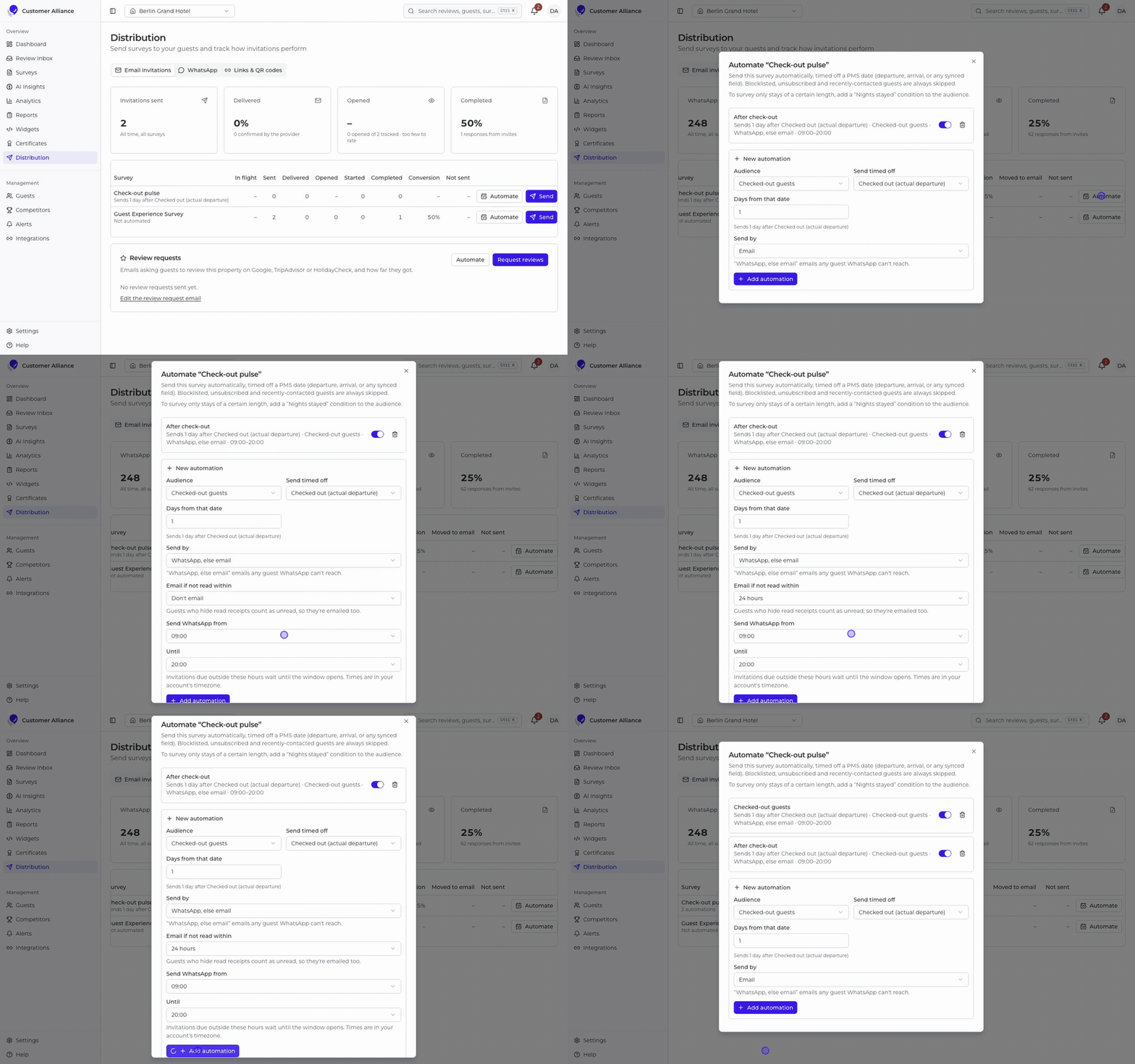
- Go to Distribution, find your published WhatsApp survey and click Automate.
- Choose the audience and when to send, for example one day after departure.
- Under Send by, choose WhatsApp only or WhatsApp, else email.
- Set the hours under Send WhatsApp from and Until. They default to 09:00–20:00 in your account's timezone, and invitations due outside them wait until the window opens.
- Save. Due guests are invited from then on.
|
Send by |
A guest WhatsApp can reach |
A guest it can't reach |
|---|---|---|
|
WhatsApp only |
Invited on WhatsApp |
Not invited |
|
WhatsApp, else email |
Invited on WhatsApp |
Emailed instead |
WhatsApp reaches a guest who has a mobile number on their profile and hasn't replied STOP. Blocklisted, unsubscribed and recently contacted guests are always skipped, on every channel.
Your guests' answers
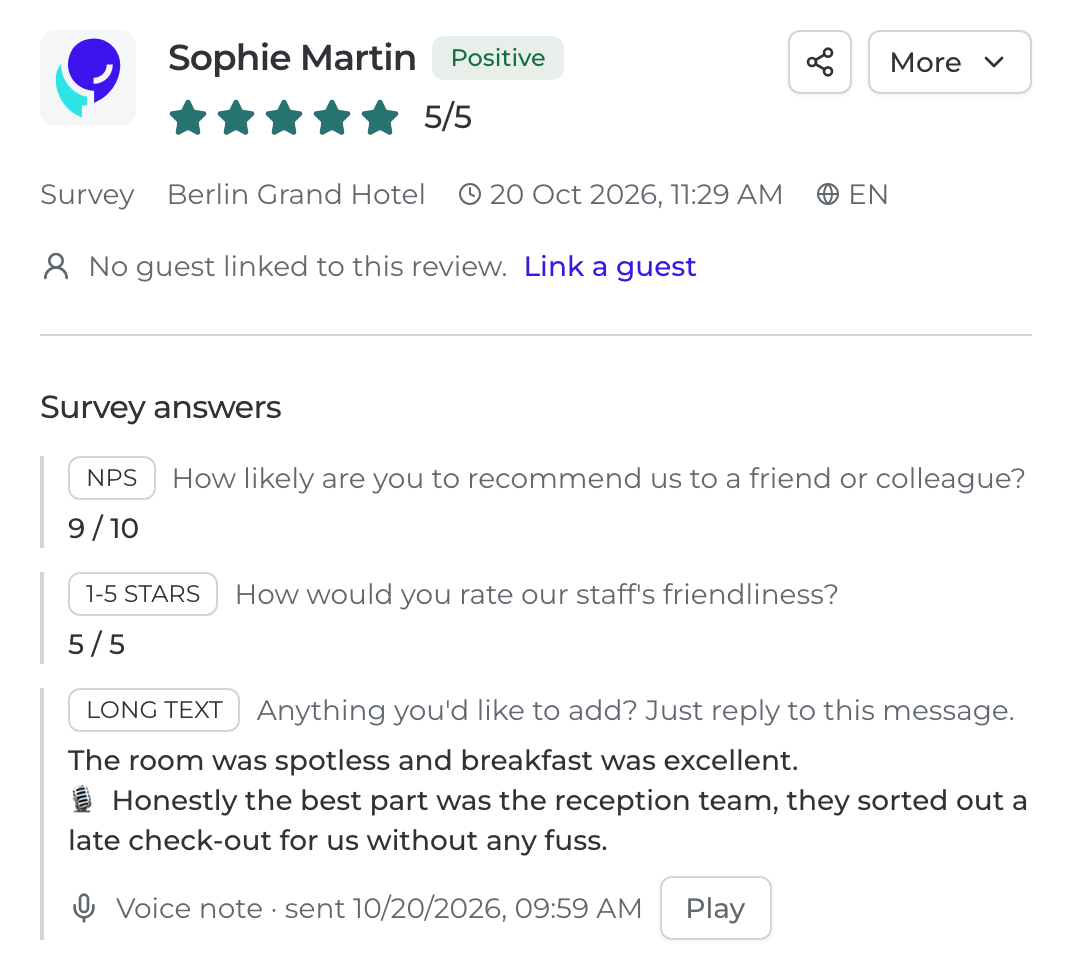
Each submitted form becomes a review in your Review Inbox, with the guest's answers and anything they added.
- When it appears: once the hour for adding something has passed, up to two hours after the guest submits. Any alert it raises comes with it. Without Ask for more, it appears straight away.
- Follow-up replies: text the guest sends within the hour joins their response as one answer.
- Voice notes: transcribed and added to the answer, marked with a microphone. The recording can be played for 30 days by users allowed to see guests' personal details; after that only the transcript is kept.
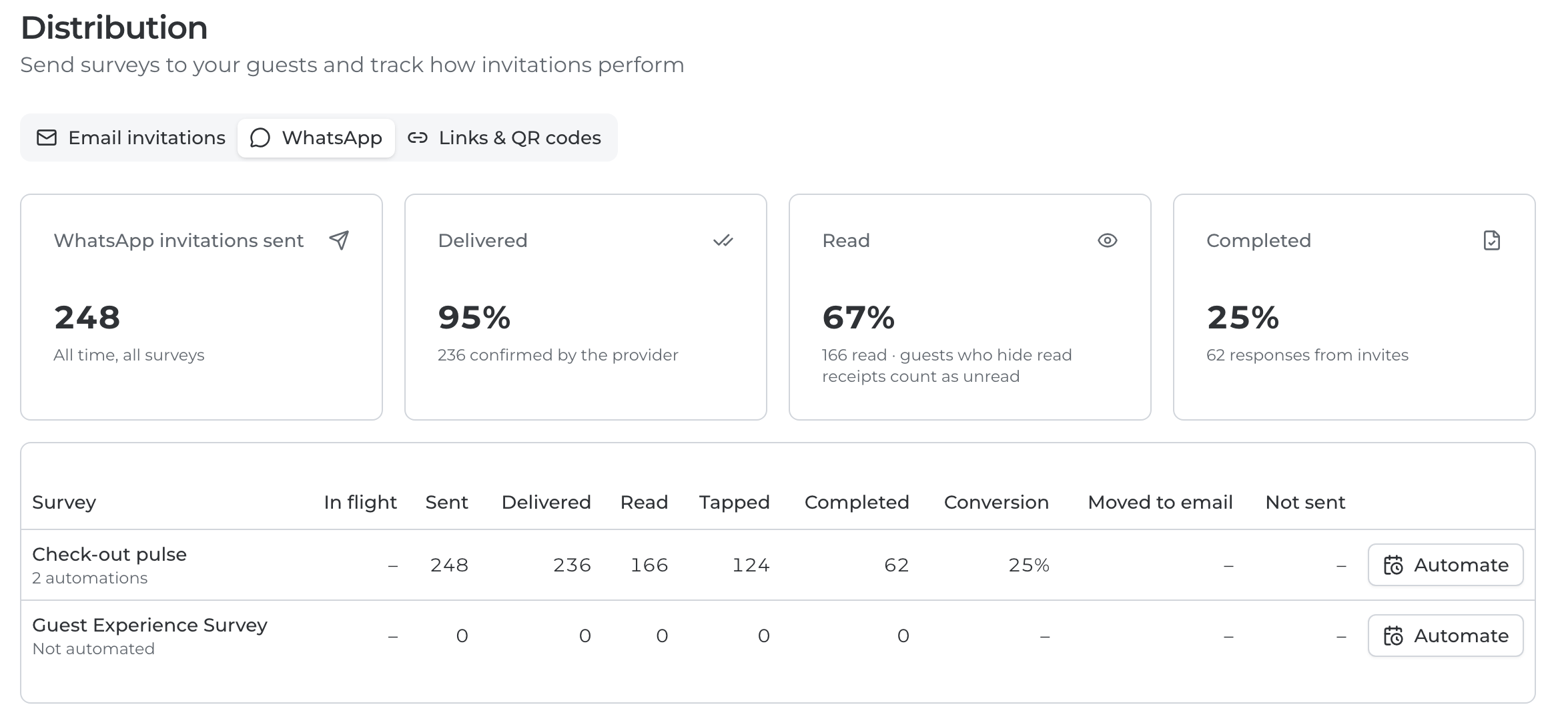
- Counts: Distribution shows how many WhatsApp invitations were sent, beside your email figures.
Limits, costs and opt-outs
Meta's daily limit
Meta limits how many different guests a number can message in any 24 hours. A new number usually starts at 250 guests a day, and Meta raises the limit as you send and guests respond well. Invitations over the limit are never dropped: they wait and go out as soon as the window reopens.
Who pays
Invitations are sent from your number through your own Meta business account, so Meta bills your Meta account for each one, at Meta's rates. Replies your guests send don't add to that.
Guests who don't want messages
A guest who replies STOP (or Stopp, Abmelden, Arrêt, Basta, Baja, Parar, Afmelden, Стоп and their equivalents in other languages) gets no more survey messages from you, and receives a confirmation:
Done: you won't receive any more survey messages from your hotel's name.
Other messages to your number
A guest who writes about something else, such as a booking question, reaches you in the WhatsApp Business app as usual. Customer Alliance doesn't answer those messages for you.
TroubleshootingEvery problem Customer Alliance can see is shown in plain words on the WhatsApp card or in the Automate dialog. Here is what each message means and what to do.
On the WhatsApp card: "Needs attention"
The card checks the number regularly. Click Check now to check it straight away.
|
The card says |
What to do |
|---|---|
|
WhatsApp has stopped working on this number, so no invitations go out from it. |
Disconnect the number, then connect it again. |
|
Guests' replies to this number aren't reaching us, so the survey doesn't open when they tap “Start the survey”. |
Disconnect the number, then connect it again. |
|
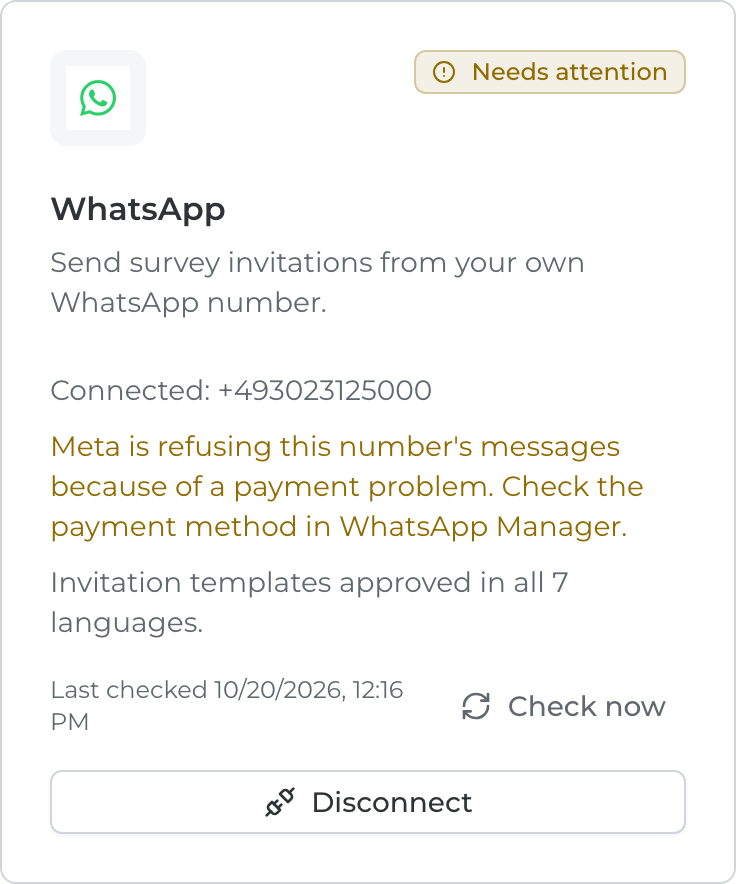
Meta is refusing this number's messages because of a payment problem. |
Check the payment method in WhatsApp Manager. |
|
Meta has locked this number's WhatsApp Business account. |
Check the account's status in WhatsApp Manager. |
|
Meta has blocked this number over a policy issue. |
Check the number's status in WhatsApp Manager. |
On the WhatsApp card: the display name
|
The card says |
What it means |
|---|---|
|
Name in review |
Meta is reviewing the number's display name. Invitations are sent meanwhile; nothing to do. |
|
Meta declined this number's display name. |
Invitations are still sent. Submit a new name in WhatsApp Manager when convenient. |
On the WhatsApp card: invitation templates
|
The card says |
What it means |
|---|---|
|
Invitation templates are being submitted to Meta. |
Just connected. Nothing to do. |
|
Waiting for Meta's review (usually within 24 hours) |
Those languages can't be sent yet. Guests whose language is still waiting get the English invitation once English is approved. |
|
Rejected by Meta |
Contact support: we'll look at why Meta refused them. |
When connecting
|
The message says |
What to do |
|---|---|
|
WhatsApp setup was closed before it finished. |
Nothing was connected. Click Connect WhatsApp to start again. |
|
The WhatsApp setup page expired after 60 minutes. |
Start again, with your phone and Meta login ready. |
|
This location already has a WhatsApp number. |
Disconnect the current number first. |
|
This number is already connected to another location. |
A number serves one location. Disconnect it from the other location first. |
|
This number is connected to another WhatsApp service. |
Disconnect it from that service, then try again. |
|
Meta couldn't connect the number. |
Try again. If it keeps happening, contact support. |
|
We couldn't confirm the connection with WhatsApp. |
Try again. |
|
Too many WhatsApp connection attempts. |
Wait an hour, then try again. |
|
WhatsApp couldn't be connected. |
Contact support. |
In the Automate dialog
|
The dialog says |
What to do |
|---|---|
|
Waiting: this location has no WhatsApp number. |
Connect a number for the location on the Integrations page. Guests waiting are invited once it's connected. |
|
Waiting: Meta is still reviewing your own WhatsApp number's invitation templates |
Nothing: sending starts once Meta approves them, usually within 24 hours. |
|
Not sending: this survey can't be a WhatsApp form. |
Edit the survey to fit a WhatsApp form (no branching, a few short questions with text options), or choose email for this automation. |
|
Not sending: WhatsApp isn't ready on this account yet. |
Contact support. |
Still stuck?
Contact Customer Alliance support with the location's name and the message you see. Messages about payment, a locked account or a policy issue come from Meta and are solved in WhatsApp Manager.