---
title: Setting Up Your Email Branding
description: Setting Up Your Email Branding
---
[Skip to content](https://support.customer-alliance.com/v2-knowledge-base/setting-up-your-email-branding#main-content)
English
Show submenu for translations
[Open a Ticket](https://support.customer-alliance.com/v2-knowledge-base/kb-tickets/new?hsLang=en) [Customer portal](https://support.customer-alliance.com/tickets-view?hsLang=en)

Open main navigation
Close main navigation
- English
Show submenu for translations
- [Open a Ticket](https://support.customer-alliance.com/v2-knowledge-base/kb-tickets/new)
- [Customer portal](https://support.customer-alliance.com/tickets-view)
- [Contact us](mailto:support@customer-alliance.com)
[Contact us](mailto:support@customer-alliance.com)
How can we help you?
- There are no suggestions because the search field is empty.
1. [Customer Alliance Knowledge Base](https://support.customer-alliance.com/v2-knowledge-base?hsLang=en)
2. [Settings](https://support.customer-alliance.com/v2-knowledge-base/settings?hsLang=en)
# Setting Up Your Email Branding
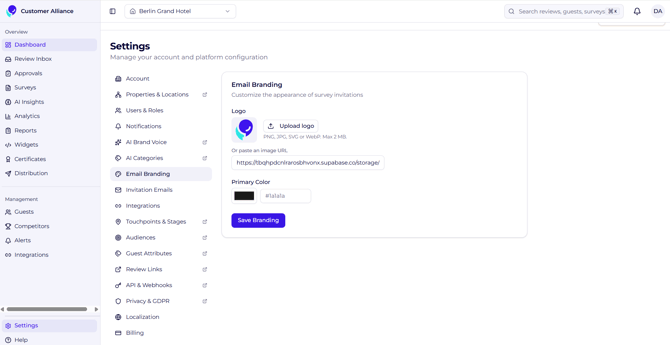
## The Email Branding settings panel is where you customize the visual identity of your guest-facing communications. Every survey invitation and transactional email sent from our platform serves as an extension of your property. By configuring your brand assets here, you ensure a professional, cohesive experience that builds guest trust and increases survey response rates.
### ****
### **1. Uploading Your Property Logo**
To anchor your emails in your property’s unique identity:
- **The Header Image:** Upload a high-resolution version of your official company or property logo.
- **Placement:** Once uploaded, this logo will automatically be placed at the top of all outgoing emails, instantly reassuring guests that the communication is safe and authentic.
### **2. Customizing Your Brand Color Scheme**
To prevent your emails from looking generic, you can apply your organization's exact design palette using standard hexadecimal (**Hex**) color codes:
- **Header & Banner Colors:** Apply your primary brand color to the email headers to create a striking, familiar visual frame.
- **Accent & Button Colors:** Map your secondary brand colors to functional elements, such as call-to-action buttons (e.g., *"Take our Survey"*), links, and borders.
**Operational Tip:** If you do not know your brand's specific Hex codes (e.g., #3A506B), you can typically request them from your marketing department or use a free digital color-picker tool on your property's website to copy the exact codes. Once saved, these styling parameters are applied globally to all active survey campaigns.
- [Getting started](https://support.customer-alliance.com/v2-knowledge-base/getting-started?hsLang=en)
- [Settings](https://support.customer-alliance.com/v2-knowledge-base/settings?hsLang=en)
- [Integrations](https://support.customer-alliance.com/v2-knowledge-base/integrations?hsLang=en)
- [FAQs](https://support.customer-alliance.com/v2-knowledge-base/faqs?hsLang=en)
[.svg "Customer-Alliance-Horizontal-logo-on-light (1)")](http://www.customer-alliance.com)
[mailto:email@email.com](mailto:email@email.com)
Copyright © 2026, CA Customer Alliance GmbH