---
title: Setting Up and Managing Survey Distribution
description: Setting Up and Managing Survey Distribution
---
[Skip to content](https://support.customer-alliance.com/v2-knowledge-base/setting-up-and-managing-survey-distribution-#main-content)
English
Show submenu for translations
[Open a Ticket](https://support.customer-alliance.com/v2-knowledge-base/kb-tickets/new?hsLang=en) [Customer portal](https://support.customer-alliance.com/tickets-view?hsLang=en)
Open main navigation
Close main navigation
- English
Show submenu for translations
- [Open a Ticket](https://support.customer-alliance.com/v2-knowledge-base/kb-tickets/new)
- [Customer portal](https://support.customer-alliance.com/tickets-view)
- [Contact us](mailto:support@customer-alliance.com)
[Contact us](mailto:support@customer-alliance.com)
How can we help you?
- There are no suggestions because the search field is empty.
1. [Customer Alliance Knowledge Base](https://support.customer-alliance.com/v2-knowledge-base?hsLang=en)
2. [Getting started](https://support.customer-alliance.com/v2-knowledge-base/getting-started?hsLang=en)
# Setting Up and Managing Survey Distribution
## Distribution is where you build, monitor, and manage the email campaigns used to send surveys to your guests. Depending on the data available through your Property Management System (PMS) integration, you can segment your audience and target guests at critical touchpoints: before they arrive (pre-stay), during their stay, or after they check out (post-stay).
### **1. The Distribution Dashboard**
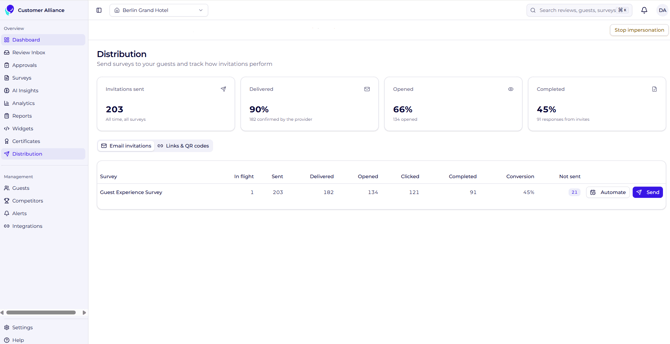
When you navigate to the **Distribution** section in the main menu, you will see a comprehensive overview of your communication performance:
- **Global Statistics:** At the top, view aggregate performance metrics (such as open rates and click-through rates) for all emails sent across your account.
- **Channel Selectors:** In the middle section, four distinct channel buttons allow you to filter or choose how campaigns are deployed.
- **Active Campaign List:** At the bottom, a detailed list displays the individual, real-time tracking statistics for every campaign currently running.
### **2. Creating a New Campaign**
To launch a new survey email campaign, follow these straightforward steps:
1. **Initiate Setup:** Click the blue **Create Campaign** button.
2. **Name Your Campaign:** Enter a clear, internal name to help your team easily identify it in your reports.
3. **Choose the Delivery Method:** Select **Automated** (triggered automatically by system events) or **Manual** (sent on-demand to a selected list).
4. **Link Your Survey & Trigger:** Select the specific survey questionnaire you want to send, and define the exact rule or timeline (the *trigger*) that determines when the email leaves the system (e.g., *2 days after check-out*).
5. **Craft Your Message:** Input your email's **Subject Line** and **Body Text**. Make sure to keep it welcoming to encourage higher response rates.
6. **Apply Your Branding:** Under the **Settings** banner, customize the visual layout, colors, and logos to ensure the email aligns perfectly with your brand identity.
7. **Launch:** Click **Create Campaign**. The system will activate the workflow, running it seamlessly in the background.
### **3. Link & QR Codes**
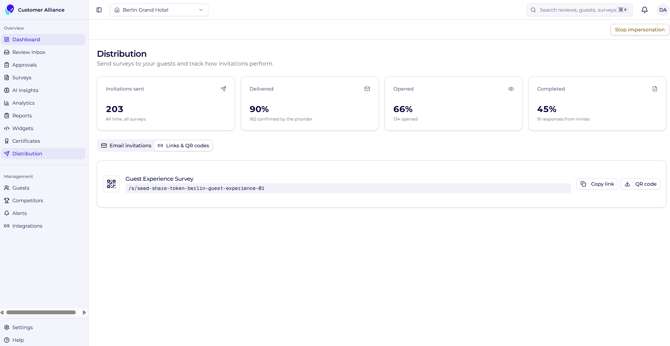
Generate direct access points for your customers to submit feedback. You can distribute these assets via email signatures, print materials, or digital invitations.
#### Sharing Options
- **Copy Link:** Click to copy a direct URL to your review form. Paste this link into custom invitation templates, messaging apps, or follow-up emails.
- **Download QR Code:** Download a high-resolution QR code image file. Place this on physical touchpoints like receipts, or printed invoices for instant mobile scanning.
- [Getting started](https://support.customer-alliance.com/v2-knowledge-base/getting-started?hsLang=en)
- [Settings](https://support.customer-alliance.com/v2-knowledge-base/settings?hsLang=en)
- [Integrations](https://support.customer-alliance.com/v2-knowledge-base/integrations?hsLang=en)
- [FAQs](https://support.customer-alliance.com/v2-knowledge-base/faqs?hsLang=en)
[.svg "Customer-Alliance-Horizontal-logo-on-light (1)")](http://www.customer-alliance.com)
[mailto:email@email.com](mailto:email@email.com)
Copyright © 2026, CA Customer Alliance GmbH