
Before you start
You start in Customer Alliance, confirm the connection in the Booking.com Extranet, and finish by entering your Property ID in Customer Alliance. After the connection is active, Customer Alliance retrieves your Booking.com guest reviews and you can reply to them directly from Customer Alliance.
You need an admin login with headquarters permissions. The Booking.com Extranet account you use must have the right to edit the Connectivity provider section. Without this permission, you cannot complete the connection.
Your current providers stay active. Guest reviews is a shared connection type, so any provider that already has access keeps it.
Step 1: Open the Booking.com Extranet from Customer Alliance
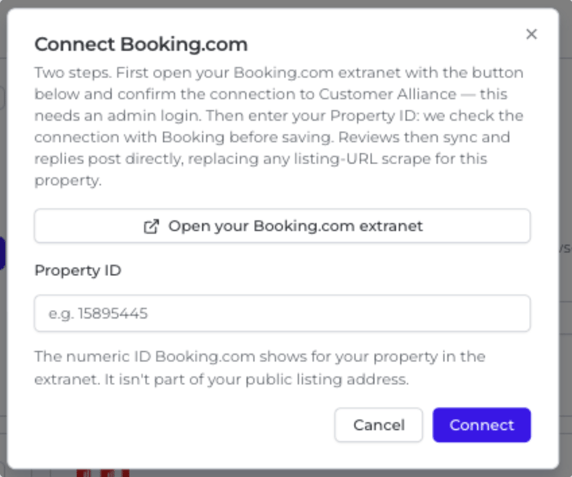
1. In Customer Alliance, open the Connect Booking.com window.
2. Click Open your Booking.com extranet. You are forwarded to the Booking.com Extranet.
Step 2: Log in to the Booking.com Extranet
1. Log in with your admin account and complete the Booking.com security check.
2. Make sure the account you logged in with has admin (headquarters) permissions, so it can edit the Connectivity provider section. If it does not, log in with an account that has these rights.
3. After you log in, you are redirected automatically to the connectivity page. Continue with Step 3.
If you are not redirected automatically:
-
Open the property view and select the right property.
-
Click your profile icon in the top right corner (see the arrow below).
-
Choose Connectivity provider in the drop-down menu.
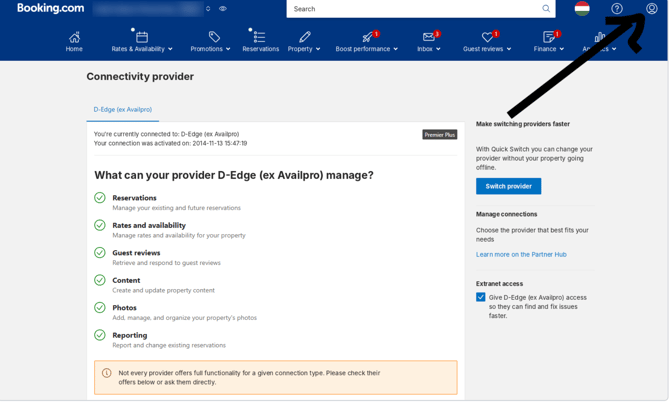
The connectivity page in the Extranet. The arrow shows the profile icon that opens the drop-down menu.
Step 3: Select properties
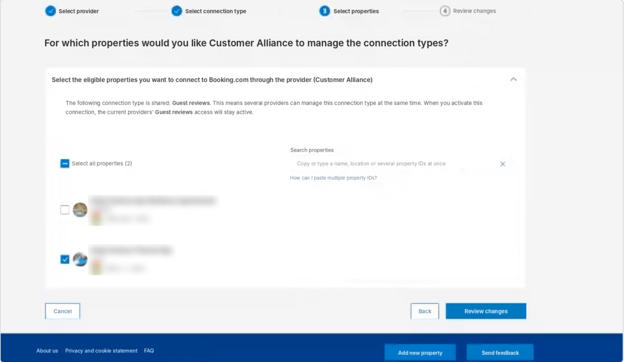
The screen asks: For which properties would you like Customer Alliance to manage the connection types?
Panel title: "Select the eligible properties you want to connect to Booking.com through the provider (Customer Alliance)."
Information text: "The following connection type is shared: Guest reviews.
This means several providers can manage this connection type at the same time. When you activate this connection, the current providers' Guest reviews access will stay active."
1. Tick each property you want to connect. To connect all of them, tick Select all properties. The number in brackets shows how many properties are eligible.
2. To find a property quickly, use Search properties. You can type or paste a name, a location or several property IDs at once. The link How can I paste multiple property IDs? explains the format.
3. Select Review changes.
Tip: each property shows its name, Booking.com property ID and address. Check the property ID before you continue.
Step 4: Select provider
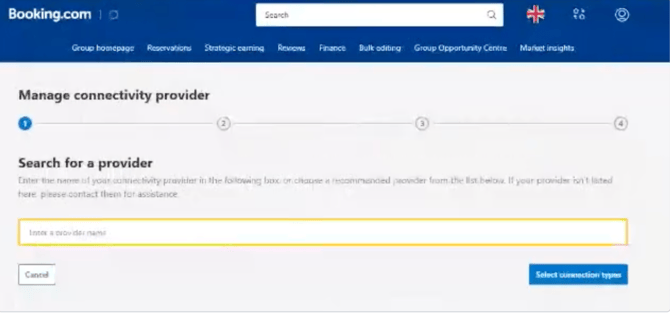
Search for Customer Alliance, then click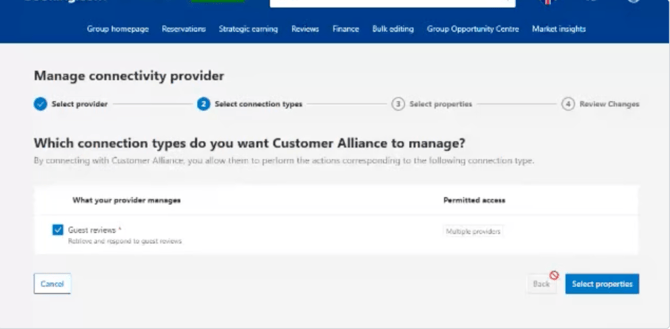
Next, tick Guest reviews and click
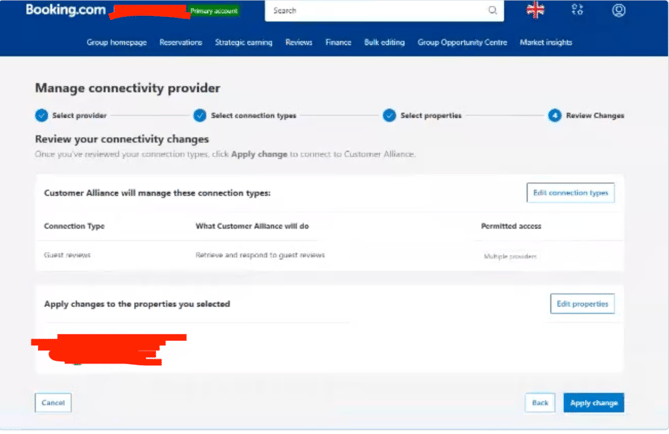
At the end, review your changes and click Apply change (details in Step 6).
Step 5. Select connection types.
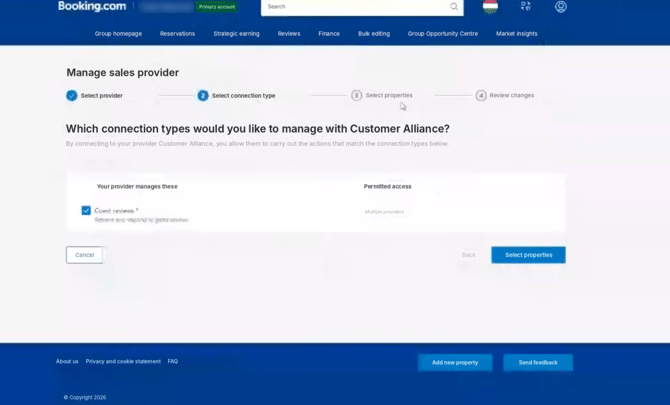
The page is called Manage connectivity provider. A progress bar at the top shows the 4 steps.
1. Under Search for a provider, type Customer Alliance in the box, or choose it from the recommended providers.
2. Click Select connection types. Search for Customer Alliance, then click Select connection types. Next, tick Guest reviews and click
Select properties (details in Step 5).At the end, review your changes and click Apply change (details in Step 6).
Step 5: Select connection type
The screen asks: Which connection types would you like to manage with Customer Alliance?
The text below it says: "By connecting to your provider Customer Alliance, you allow them to carry out the actions that match the connection types below."
1. Tick Guest reviews.
2. Select Select properties.
Other buttons on this screen: Cancel and Back.
Step 6: Review changes and apply
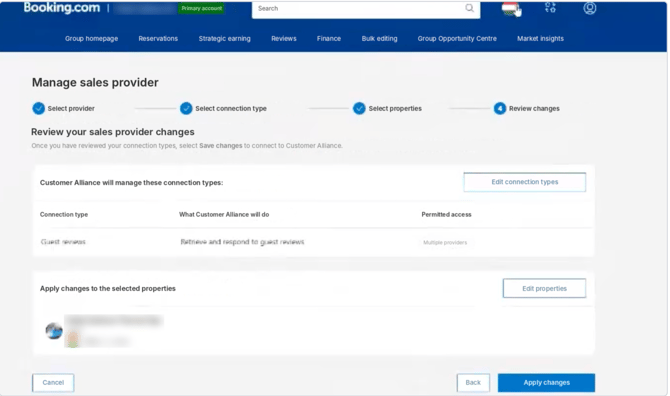
The screen is titled Review your sales provider changes. The text says: "Once you have reviewed your connection types, select Save changes to connect to Customer Alliance."
Customer Alliance will manage these connection types:

Apply changes to the selected properties: this panel lists the properties you ticked in Step 3.
1. Check that the connection type is Guest reviews. To change it, select Edit connection types.
2. Check the property list. To change it, select Edit properties.
3. Select Apply changes.
After you apply: check the status
Booking.com takes you to Bulk editing and shows the message We've started making your changes. It can take a while before the change shows on all the properties you selected.
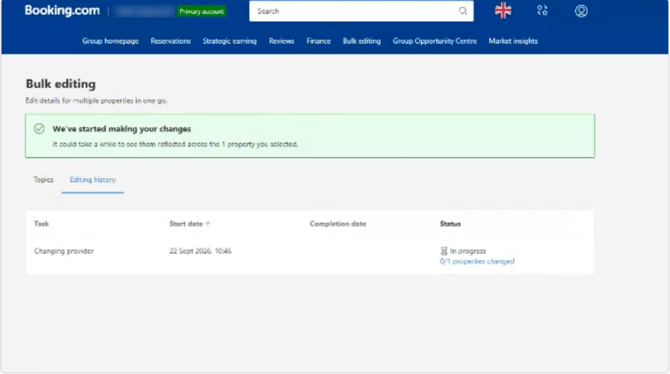
Open the Editing history tab to follow progress:
When the status shows all properties changed (for example 1/1), the connection is active in Booking.com. Continue with Step 7.
Step 7: Enter your Property ID in Customer Alliance
1. Go back to the Connect Booking.com window in Customer Alliance (see Step 1).
2. Enter your Property ID. This is the numeric ID Booking.com shows for your property in the Extranet, next to the property name in the top bar. It is not part of your public listing address.
3. Click Connect. Customer Alliance checks the connection with Booking.com before saving. Your Booking.com reviews then sync to Customer Alliance, and replies are posted directly to Booking.com. This replaces any listing-URL scrape for this property.